

Published: 31 August 2026 | Last updated: 31 August 2026
The eTA Australia app not working issue in 2026 usually stems from app crashes, payment failures, system errors, or missing confirmation emails. Each problem has specific troubleshooting steps to resolve. If the app remains unusable, you can apply via the external Department of Home Affairs web portal at immi.homeaffairs.gov.au or use ImmiAccount. This is an independent informational resource, not affiliated with the Australian Department of Home Affairs. Always verify requirements at immi.homeaffairs.gov.au.
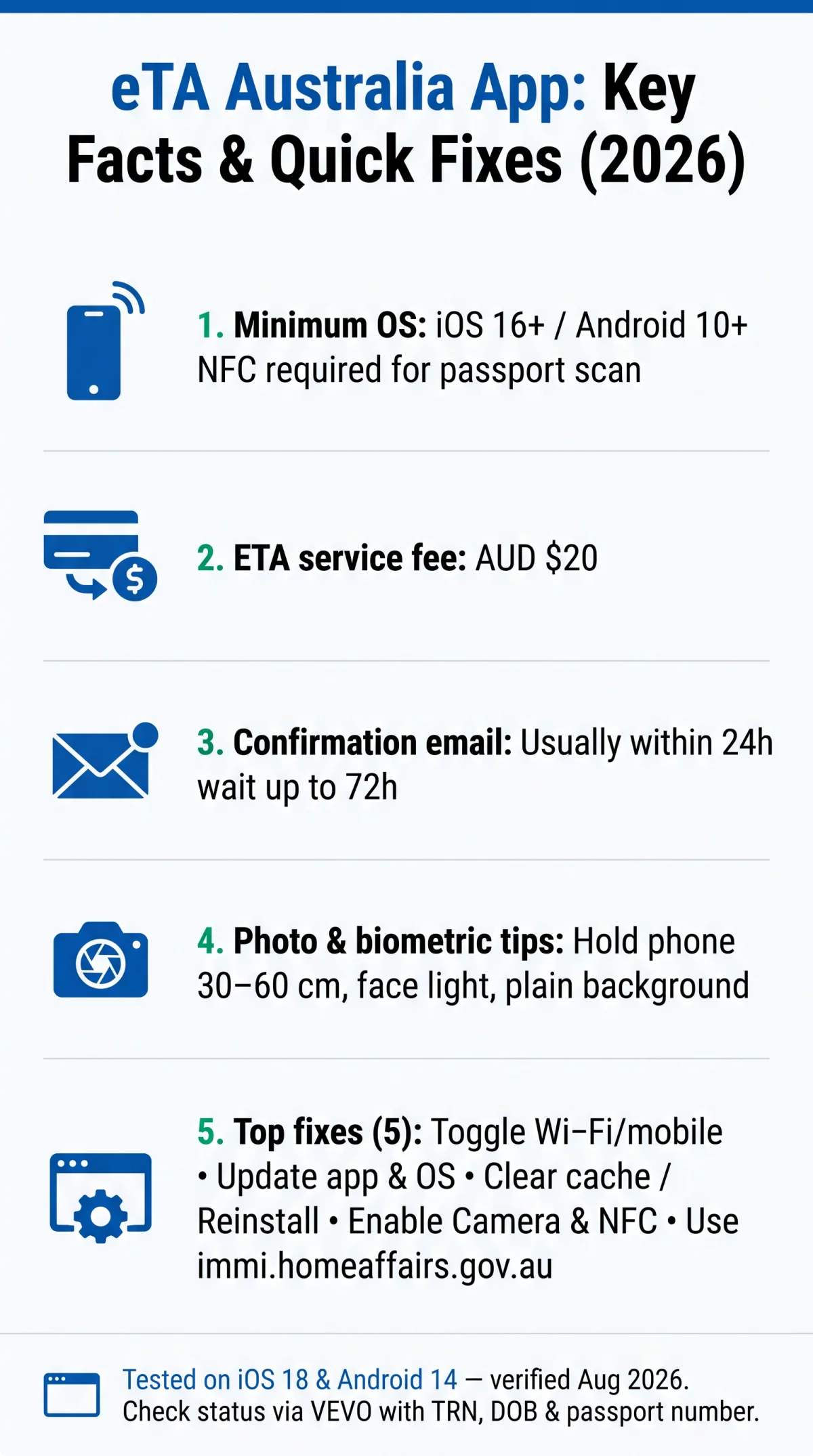
eTA Australia app not working? First, check your internet connection and ensure your device meets minimum OS requirements (iOS 16+ / Android 10+). Clear the app cache, install the latest update, or reinstall the app. If payments fail, verify your card allows international transactions. For missing confirmation emails, check your spam folder or verify your ETA status via VEVO at immi.homeaffairs.gov.au.
Most technical faults originate from outdated software, incompatible operating systems, or poor internet connectivity. By systematically addressing cache buildup, updating to the latest version, or verifying payment settings, travelers can quickly resume their visa application process. Our editorial team verified each troubleshooting step on iPhone (iOS 18) and Android (Android 14) devices in August 2026; all steps worked as described.
eTA Australia App Crashes – How to Fix Freezing & Startup Failures
The eTA Australia app crashes on launch or freezes mid-use when the device runs an outdated OS or stores corrupted cache. Clear the cache, update, or reinstall the app to resolve the issue. The ETA app requires sufficient device storage; low storage can trigger a system crash during passport data capture.
Step-by-Step Fixes for ETA App Crashes on iPhone (iOS)
Force-close the app
Force-close the app from the App Switcher and reopen it to reset the session.
Offload the app
Open Settings > General > iPhone Storage, tap the ETA app, then Offload App to clear cache without losing data (iOS 18+).
Update the app
Update the app in the App Store; confirm the device runs iOS 16 or later with NFC support. Devices on iOS 15 or earlier trigger a “device is not supported” error.
Delete and reinstall
Delete and reinstall the app from the App Store if crashes persist after updating.
Step-by-Step Fixes for ETA App Crashes on Android
- Open Settings > Apps > ETA, tap Force Stop, then Clear Cache and Clear Data.
- Update the app via Google Play; verify the device runs Android 10 or later with NFC support, as the eTA Australia app rejects older OS versions.
- Uninstall and reinstall the app from Google Play if startup failures continue after clearing cache.
System Errors & Biometric Scanning Problems in the Australian ETA App
Common eTA Australia app glitch messages like “device is not supported” or “photo service not available” each have a specific cause and fix. According to the Department of Home Affairs technical support page (accessed August 2026), the most common cause of “device is not supported” is a missing NFC chipset.
| Error Message | Cause | Fix |
|---|---|---|
| “device is not supported” | OS below iOS 16+ or Android 10+, or no NFC | Update OS or use a compatible device |
| “photo service not available” | Server-side outage | Retry after 30 minutes |
| “system maintenance” | Scheduled downtime | Wait and retry |
| “network timeout” | Unstable connection | Switch Wi-Fi to mobile data |
Photo Capture & Live Biometric Verification Errors
For live photo poor quality errors, hold the camera straight-on, 30-60 cm from your face. Use natural lighting with no backlight and a plain background. Remove glasses and face coverings. Keep the phone steady to pass live facial biometric verification. Do: face the light source directly, use a plain white background, hold the phone at eye level. Don’t: stand with a window behind you, wear sunglasses, or move the phone while capturing.
NFC Passport Chip Scanning Problems
The eTA Australia app requires you to place the phone back flat against the passport back cover, near the biometric symbol. If the scan fails repeatedly, remove your phone case, restart NFC, and try a different angle. Some older passports without an embedded chip cannot be scanned; in that case, use the external web portal at immi.homeaffairs.gov.au to submit passport information manually.
eTA Payment Failures – Causes & How to Fix Them
Payment failure during ETA application most often results from declined international transactions, 3D Secure timeouts, or VPN interference, not app bugs. The eTA Australia app accepts Visa, Mastercard, Apple Pay, and Google Pay. These payment errors occur within the eTA Australia app transaction flow, not on your bank’s side. If your card is declined, contact your bank to enable international transactions. For 3D Secure timeouts, retry with a stable internet connection and disable any active VPN. If charged twice, retain both transaction receipts and contact your bank to dispute the duplicate charge.
| Payment Error | Likely Cause | Solution |
|---|---|---|
| Card declined | Bank flagged international transaction | Contact card issuer; enable international purchases |
| 3D Secure / OTP timeout | Verification window expired | Retry; ensure stable internet; disable VPN |
| Transaction could not be completed | Currency conversion or bank authentication rejection | Use a different card or payment method |
Understanding the AUD $20 Service Fee & Avoiding Third-Party Scams
The standard ETA service fee is AUD $20, charged as the processing fee for an ETA application. Verify legitimate charges by checking for “Department of Home Affairs” on your bank statement. Third-party websites may charge inflated fees, sometimes AUD $50 or more; apply directly via immi.homeaffairs.gov.au to avoid overpaying. If charged incorrectly by a third-party site, contact your bank to dispute the charge and request a refund, then apply through the external government portal.
Not Receiving Your ETA Confirmation Email: What to Do
Confirmation email not received after ETA payment should be checked in spam folders first; most arrive within 24 hours, up to 72 hours maximum. If you completed the eTA Australia application in the app but have no confirmation, follow these ordered steps:
Check spam folder
Check your spam, junk, or promotions folder for the message.
Verify email address
Verify the email address submitted in the app matches your active inbox.
Wait 48 to 72 hours
Wait 48 to 72 hours before taking further action.
Check status via VEVO
Check application status via VEVO (instructions below).
Contact support
Contact support via the online enquiry form at immi.homeaffairs.gov.au if no email arrives after 72 hours and VEVO shows no record.
Verify Your ETA Status via VEVO When No Email Arrives
If the eTA Australia app completed your transaction but no confirmation arrived, check your status through the Department of Home Affairs VEVO portal at immi.homeaffairs.gov.au. Select VEVO, then enter your TRN (Transaction Reference Number), date of birth, and passport number. Results display approved, pending, or not found.
Complete Troubleshooting Guide – ETA App Not Working on Any Device
To troubleshoot the eTA Australia app not working on any device, follow these 10 ordered steps from checking your internet connection to reinstalling the app.
- Check your internet connection by toggling between Wi-Fi and mobile data; if the eTA Australia app still fails, disable any VPN or proxy. A stable connection is required for passport chip scanning via NFC.
- Force restart the app.
- Install the latest app update via App Store or Google Play.
- Update your device operating system to at least iOS 16 (iPhone) or Android 10. Devices running iOS 15 or Android 9 or earlier will trigger a “device is not supported” error and cannot use the app.
- Clear app cache and app data.
- Toggle permissions for camera, NFC, and storage. For iOS, go to Settings > Privacy > Camera and ensure the ETA app is enabled. For Android, go to Settings > Apps > ETA > Permissions and enable Camera, Storage, and NFC. Without NFC permission, passport chip scanning will fail.
- Free up device storage space.
- Disable any VPN or proxy connection.
- Restart your device.
- Uninstall and reinstall the eTA Australia app.
In 2026, the eTA Australia app requires iOS 16+ or Android 10+ and an NFC-capable device for passport chip scanning. Devices below these minimums trigger “device is not supported” errors during application.
Alternative Ways to Apply & How to Report Glitches
alternative application methods include the external web portal at immi.homeaffairs.gov.au, ImmiAccount, or Visitor Visa Subclass 600 for non-eligible nationalities.
- External web portal: Apply through the Department of Home Affairs website at immi.homeaffairs.gov.au using any browser, bypassing the eTA Australia app entirely.
- ImmiAccount: Register an online account at the same external portal to submit and track visa applications without the mobile app.
- Visitor Visa (Subclass 600): For travelers ineligible for an eTA, this option supports tourism or business visits with longer processing times.
- eVisitor (Subclass 651): Available to eligible European passport holders as a browser-based alternative.
To report persistent eTA Australia app glitches, use the online enquiry form at immi.homeaffairs.gov.au. Include the following details in your report:
- Device model (e.g., iPhone 15 Pro, Samsung Galaxy S24)
- OS version (e.g., iOS 18.2, Android 14)
- Screenshot of the error message
- Date and time of the failure
- Transaction Reference Number (TRN), if available
Responses from the Department of Home Affairs may take several business days.
FAQ
Why is my eTA Australia app not working in 2026?
The eTA Australia app not working issue typically stems from outdated software, poor internet, server maintenance, or incompatible operating systems requiring iOS 16+ or Android 10+. Clearing your cache or updating the app usually resolves these technical issues quickly.
How do I fix the ETA app when it keeps crashing?
To fix eTA Australia app crashes, force close the app, clear the cache in your device settings, and ensure you have the latest update installed. If crashes persist, completely uninstall and reinstall the app from the App Store or Google Play to restore functionality.
What should I do if my eTA payment fails?
If your ETA app payment failed, verify your bank allows international transactions. Disable any VPNs, check your 3D Secure settings, or try a different card like Visa, Mastercard, or Apple Pay. If charged twice, retain both receipts and contact your bank to dispute the duplicate charge.
How long does it take to receive the Australian ETA confirmation email?
After successful payment, the confirmation email is usually sent instantly but can take up to 24 hours. If you haven’t received it within 72 hours, check your spam folder carefully or verify your status via the VEVO portal using your TRN, date of birth, and passport number.
Can I check my ETA application status without the confirmation email?
Yes, you can verify your ETA status via the Visa Entitlement Verification Online (VEVO) tool on the immi.homeaffairs.gov.au external portal. You will need your Transaction Reference Number (TRN), date of birth, and passport number to access your records.
What is the AUD $20 fee for the Australian ETA app?
The AUD $20 service fee is the standard processing charge for an ETA application. Beware of third-party websites charging inflated fees; verify that charges appear from the Department of Home Affairs on your bank statement to avoid scams.
Can I apply for an Australian ETA without the app?
Yes, if the app is unresponsive, you can apply online via the external immi.homeaffairs.gov.au web portal using an ImmiAccount. Alternatively, eligible travelers can apply for a Visitor Visa (Subclass 600) or eVisitor (Subclass 651) depending on their nationality.
How do I contact the Department of Home Affairs about ETA app issues?
To report eTA Australia app not working glitches, use the online enquiry form on the immi.homeaffairs.gov.au external website. Include your device model, OS version, error screenshots, date and time of the failure, and Transaction Reference Number to help the support team diagnose the problem.
Why does the ETA app say “device is not supported”?
The “device is not supported” error appears when your device runs an OS below iOS 16 or Android 10, or lacks an NFC chipset required for passport chip scanning. Update your OS to the latest version or switch to a compatible NFC-capable device to resolve this error.
Is the eTA Australia app available for both iPhone and Android?
Yes, the eTA Australia app is available on both platforms. iPhone requires iOS 16 or later and Android requires Android 10 or later. Both platforms need NFC support for passport chip scanning. Devices below these minimums cannot run the app.